
Excel Without Regrets

Microsoft Excel is an amazing tool. It is so flexible, intuitive and forgiving.
That flexibility is precisely what gets us into trouble sometimes.
As we observe the use of spreadsheet software, there seem to be some common problems we encounter. To avoid these, we recommend adopting some standard principles to design robust Excel workbooks.
Rather than asking how to get the spreadsheet to work, we ask:
“How do I make it difficult for this spreadsheet to be wrong?”
Here are 5 principles we recommend:
Principle 1: Make Assumptions Visible
Don’t mix what we know with what we calculate. Structure and identify inputs, assumptions and outputs. Label cells clearly.
Use a color key to visually separate cell values that are inputs, intermediate calculations, or final outputs or results. Set up a simple color key for use by the team.
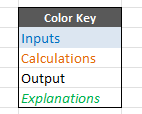
Excel also provides a ready-made system of color coding (Home / Styles / Cell Styles).
Describe calculations in explanatory notes, or even in pseudo calculations beside cells.
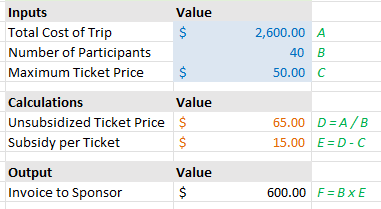
Use named cell and table references. Improving formula readability by using cell and table names in the calculations. A formula that reads =TripCost/RiderCount is immediately easier to understand than =C23/C24, though both may reference the same cells.
Principle 2: One Fact, One Home
Enter a fact once, then reference it whenever it is needed. Duplicate data creates competing versions of the truth.
We find that naming cells and tables is helpful for this as well.
Placing those assumptions, or facts, in a separate worksheet is often a helpful approach to avoid changing the values unintentionally, or setting up multiple copies of the same fact.
Where assumptions can be structured in a table, such as: allocation rates, fiscal years, funds, or employment role compensation rates, the XLOOKUP formula can be very helpful to consistently return the correct amount, or even to notify the user if a fact is not defined.
See our article about the XLOOKUP function from January 2021.
Principle 3: Prevent Input Errors
We try to prevent, or reduce, input errors by using clean data structures and validation rather than relying on users to type consistently. Dates are especially vulnerable to user input inconsistencies.
Data validation options for cells in which users add data can be configured from the Excel menu: Data / Data Tools / Data Validation.
In the Data Validation dialog, we provide a list of valid entries….
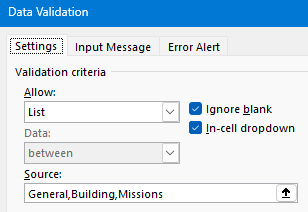
… and guidance so correct entries are selected, or …
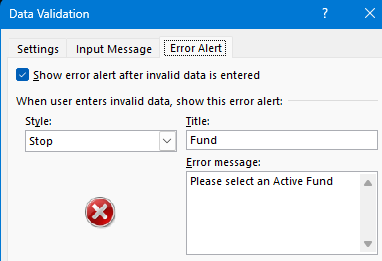
… we point to a named range …
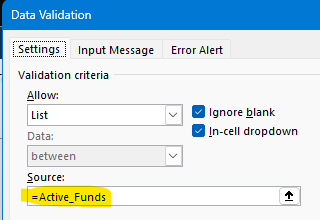
… which builds on Principle 2: Restrict data entry choices to a single table (one home), rather than freely typing in choices.
Principle 4: Consistency Beats Cleverness
We seek to use predictable formula patterns and avoid hard-coded overrides and unnecessary complexity.
When building or troubleshooting a formula, the <F2> key reveals the cells / values on which the formula is based.

Taking time to explain the calculations to colleagues (or our future selves) when next opening the workbook by using helper columns always pays.

We seek to avoid lengthy “black-box” formulas. Don’t let the AI draft a formula that we can’t understand or explain to the team.
Principle 5: Calculate and Verify
Independent checks and reconciliations are built into the workbook. Use checksums where possible. For example, if allocations percentages should total to 100%, we confirm that in a separate column.

Conditional formatting is a helpful way to verify that checksums confirm calculations.

The Successor Test
Can another competent person tell where the data came from, what to change, what not to change, which assumptions are in use, and how to know the result is right?
That competent person might be a colleague, an auditor charging by the hour, or even our future selves.
Download a single-page summary of the Principles.
Download an Excel workbook demonstrating useful ways to implement the Principles.